

Connecting Shopify to Google Ads takes about fifteen minutes. Getting the tracking right is where most stores quietly fall over, and they don’t find out until their ROAS looks too good to be true, because it is.
Here’s how to do both properly.
The fastest way to connect Shopify to Google Ads is the free Google & YouTube channel app: install it, link the Google account that owns your Ads account, and it sets up purchase tracking automatically. The catch nobody warns you about: that app installs its own conversion pixel, so if you also run a Google Ads tag through Google Tag Manager, both fire on every sale and your conversions double. Half your reported sales are phantom, your ROAS looks twice as good as it is, and Smart Bidding optimises toward a number that doesn’t exist. One tracking method, purchases set as the only primary goal, verified against real orders. That’s the whole job.
Let’s walk it.
How do you connect Shopify to Google Ads?
The Google & YouTube channel app is the official path and the right one for most stores. It links your accounts, syncs your product feed to Merchant Centre, and sets up conversion tracking in one flow. Here’s the sequence:
- 1. Install the channel. In Shopify admin, click the plus next to Sales Channels, search “Google & YouTube”, add it, and accept the permissions. Takes about thirty seconds.
- 2. Connect the right Google account. This is the step people rush and regret. Connect the Google account that actually owns your Google Ads and Merchant Centre accounts, not a random personal Gmail. Getting this wrong means untangling account ownership later, which is a genuine headache.
- 3. Link Google Ads. Select your existing Ads account from the dropdown. The app links to an account, it doesn’t create one, so if you don’t have Google Ads yet, spin one up at ads.google.com first, it takes a few minutes.
- 4. Connect Merchant Centre. This is what powers Shopping ads later. The app can create or link a Merchant Centre account and start syncing your catalogue.
- 5. Accept the conversion setup and enable enhanced conversions. The app creates conversion actions automatically and prompts you to turn on enhanced conversions. Turn it on. It recovers a chunk of tracking that privacy changes would otherwise cost you, and it’s the single most-skipped step in the whole flow.
That’s the connection done. Now the part that actually matters.
Why do my Shopify and Google Ads conversion numbers not match?
Because you’re almost certainly counting some sales twice. This is the single most common tracking fault on Shopify stores, and here’s exactly how it happens.
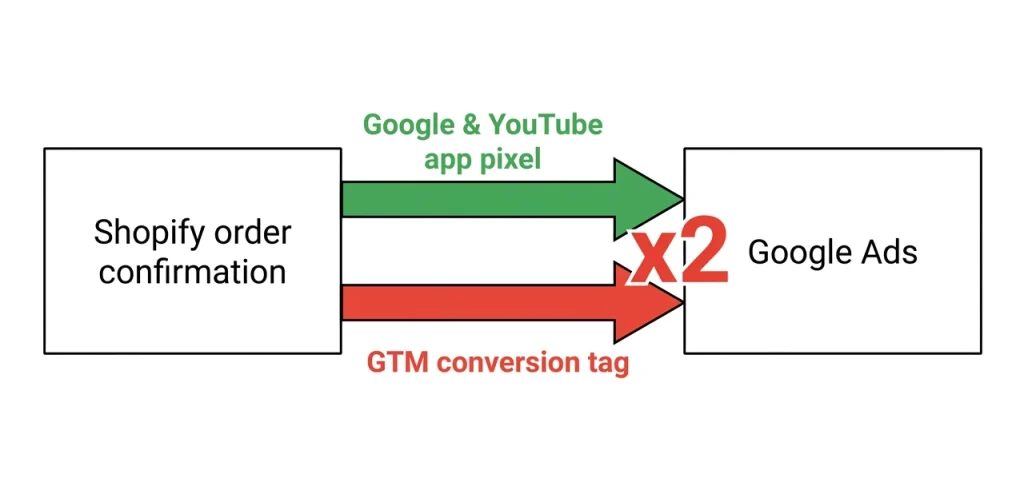
The Google & YouTube app installs its own native Google Ads pixel when you connect it. That pixel fires on the order confirmation page. Fine on its own. But plenty of stores also have a Google Tag Manager container with a Google Ads conversion tag in it, often added by a previous agency or a setup guide. That tag fires on the same order confirmation page, for the same purchase.
Two tags, one sale, two conversions reported. Your conversion count inflates, your ROAS looks roughly twice as healthy as reality, and every automated bidding decision Google makes is built on a number that’s part fiction. The account looks like it’s smashing it right up until you compare Google’s conversion count to your actual Shopify orders and the gap is enormous.
The fix: pick one tracking method and kill the other. If you’re using the Google & YouTube app (recommended for most stores), disable any Google Ads conversion tag in GTM. If you’ve deliberately built a GTM setup, disable the app’s native pixel instead. Never run both. Then compare Google Ads conversions to Shopify orders each week until you’re confident they line up.
Which Shopify events should you track in Google Ads?
The app will offer to track several events: purchase, add to cart, begin checkout, page view. Track them, but do not treat them equally, because this quietly decides what your campaigns chase.
Purchase is your only primary conversion. Everything else goes to secondary. Here’s why it matters. Google’s bidding optimises toward your primary conversions. If add to cart and begin checkout are also set as primary, you’re telling Google that a bloke who abandoned his cart is worth optimising for, the same as someone who actually paid. The algorithm dutifully goes and finds you more cart-abandoners.
Set purchase as the single primary goal, move page view, add to cart and begin checkout to secondary, and your campaigns optimise for revenue instead of window shopping. This one setting change fixes more underperforming ecommerce accounts than any bid adjustment.
What are enhanced conversions and do you need them?
Yes, turn them on. Enhanced conversions use the customer data your store already collects at checkout (email, phone, address), hashed for privacy, to match conversions that browser tracking alone would miss. Since iOS privacy changes and cookie restrictions blind a share of standard tracking, enhanced conversions recover some of that lost data and feed the bidding algorithm a fuller picture.
The Google & YouTube app can enable enhanced conversions for you during setup. If you missed it, you can turn it on in your Google Ads conversion settings afterwards. It’s free, it’s a few clicks, and it’s the difference between the algorithm optimising on 70% of your conversion data and closer to 90%. There’s a full walkthrough of the deeper enhanced conversions setup coming in this cluster.
Do you need Google Tag Manager for Shopify and Google Ads?
For most stores, no. The Google & YouTube app handles the tagging cleanly, and adding GTM on top is exactly how the double-counting problem starts. If you’re a store under roughly $10k a month in ad spend, the app on its own is the right call. Simpler, fewer moving parts, less to break.
Where GTM earns its place is at scale or complexity: server-side tagging for a store spending $10k+ a month, custom event tracking, or a setup where you need control the app can’t give you. Even then, the rule holds, if GTM is doing the conversion tracking, the app’s native pixel must be switched off. One source of truth, always.
How do you check your tracking actually works?
Never assume. Verify. The stores that get burned are the ones that connected everything, saw conversions appear, and trusted them.
- Run a test order. Use Google Tag Assistant to watch the conversion fire on a real checkout. It should fire once, not twice, with the correct purchase value attached.
- Wait 24 to 72 hours for Google Ads to show diagnostic data on the conversion action, then check the status reads “Recording conversions” with no warnings.
- Compare weekly. For the first month, put your Google Ads conversion count next to your actual Shopify order count each week. They won’t match perfectly (attribution windows and channels differ), but they should be in the same postcode. If Google shows 80 conversions and Shopify shows 40 orders, you’re double-counting.
Karen from AgencyLand sends a monthly report full of conversions and never once checks them against the store’s real order count. The numbers look great in the slide deck. The bank account tells a different story.
Should you set this up yourself or get help?
The connection itself, absolutely do it yourself. The five steps above are genuinely straightforward, and understanding your own tracking is worth the afternoon it takes. Most stores can get the Google & YouTube app connected and purchase tracking live without any help at all.
Where it’s worth a second opinion is the verification, especially if you’ve inherited an account from a previous agency or freelancer. Double-counting, soft events set as primary, and orphaned GTM tags are exactly the kind of mess that hides in a “working” account for months. If your ROAS looks too good, or your Google numbers have never matched your Shopify orders, that’s worth a proper look before you scale spend on top of broken data.
If you want that second set of eyes, we’re an eCommerce ads agency that runs Google and Meta for Australian online stores. Tracking audits are the first thing we do on any account, because there’s no point optimising numbers that aren’t real. You deal with me and my small team directly. No middlemen. No contracts. No fluff.
Say G’day if you want your tracking checked. And if it turns out your setup’s already clean, I’ll tell you that and send you on your way.
Connecting Shopify to Google Ads FAQ
How do I connect my Shopify store to Google Ads?
Install the Google & YouTube channel app from your Shopify admin, connect the Google account that owns your Google Ads account, then link Google Ads and Merchant Centre through the setup wizard. The app sets up purchase conversion tracking automatically. Enable enhanced conversions when prompted, and verify with a test order before spending.
Why are my Google Ads conversions higher than my Shopify orders?
You’re almost certainly double-counting. The Google & YouTube app installs its own conversion pixel, and if you also have a Google Ads tag in Google Tag Manager, both fire on each sale. Disable one of them, keep a single tracking method, and your conversion count will match reality.
Do I need Google Tag Manager to track Shopify conversions in Google Ads?
Not for most stores. The Google & YouTube app handles conversion tracking on its own, and adding GTM on top is the main cause of double-counted conversions. GTM is worth it for larger stores needing server-side tracking or custom events, but only if the app’s native pixel is switched off to avoid duplication.
What conversion events should a Shopify store track in Google Ads?
Track purchase, add to cart, begin checkout and page view, but set only purchase as your primary conversion. Move the rest to secondary. Google optimises toward primary conversions, so if soft events like add to cart are primary, your campaigns chase window shoppers instead of buyers.
How long does it take to connect Shopify to Google Ads?
The connection takes about 15 to 25 minutes of hands-on setup through the Google & YouTube app. Conversion tracking then needs 24 to 72 hours to validate in Google Ads before diagnostic data appears. Verify with a real test order using Google Tag Assistant rather than assuming it works.
Is the Google & YouTube app free?
Yes, the Google & YouTube channel app is free to install and use. It connects your store to Google Ads and Merchant Centre and handles conversion tracking at no cost. You only pay for the ads themselves. It requires a Shopify store on a paid plan for conversion data to validate.